


GeminiMan WearOS Manager
4.8207.00 Reviews
App Specs
- Version
- 6.0.6
- Updated On
- License
- Free
- Downloads
- 100,000+
- Developer
- GeminiMan
- Categories
- Personalization
- Platform
- Android
Screenshots
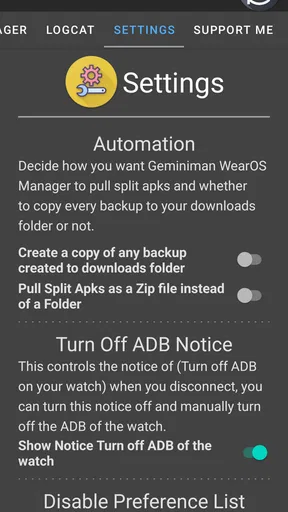
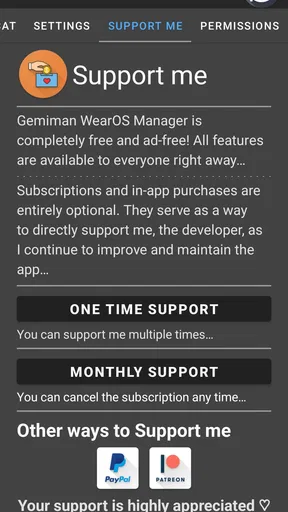
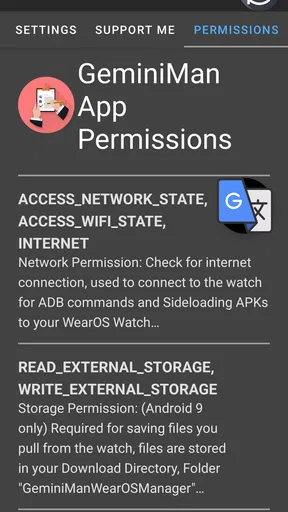
 Analysis by AppCompare
I spend a lot of time adjusting and troubleshooting Wear OS watches, and GeminiMan WearOS Manager is aimed at a very specific kind of user: someone who wants to manage a watch from an Android phone using Wi-Fi ADB instead of relying only on the normal watch interface. It is a free personalization app from GeminiMan, but its usefulness goes well beyond changing a visual setting. The focus is on technical control, including app management, Logcat viewing, backups, shell commands, and related maintenance tasks.
That immediately makes it different from the usual watch companion application. A standard companion app is designed for pairing, notifications, health synchronization, faces, and basic device settings. This tool is closer to a compact service bench for Wear OS. I would not recommend installing it simply because you want an easier way to change a watch face. I would recommend looking at it when you need to inspect what the watch is doing, move beyond the stock controls, or perform maintenance that normally requires a computer and a more involved ADB setup.
What the app actually brings to a Wear OS setup
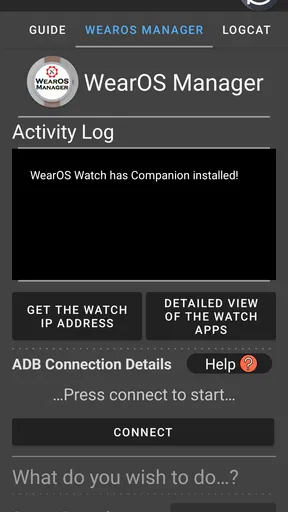
The central idea is Wi-Fi ADB management. In practical terms, that means the watch and phone can communicate for technical tasks over a local wireless connection, rather than forcing you to handle every operation through the watch screen. The app brings several ADB-oriented tools together in one mobile interface: installed-app management, Logcat access, backups, shell commands, and other controls intended for people who are comfortable working closer to the operating system.
I like that focus because it solves a real inconvenience. A watch is small, awkward to navigate, and often difficult to troubleshoot directly. When an app behaves strangely or a system process appears to be consuming attention, a phone is a much more practical place to inspect information. A larger screen also makes command entry, log reading, and reviewing a backup workflow less frustrating than attempting similar work on the watch itself.
The app is listed in the Personalization category, although its practical character is more technical than decorative. The category makes sense if you think of personalization as control over the device experience, but this is not primarily a wallpaper or watch-face utility. Its value comes from giving the user more say over what is installed, what can be examined, and how certain maintenance actions are performed.
The current version is 6.0.6, and the minimum operating system is Android 9. That is useful context before installing it: the phone must meet that requirement, and the app is intended for an Android-based workflow. It is not the right answer for someone searching for a general iPhone companion or a universal Wear OS dashboard.
Free access changes the value calculation
The app is free to install, which makes it easy to test without committing money upfront. There are in-app purchases ranging from $0.99 to $4.99 per item, so “free” should be understood as free access to the app rather than a promise that every possible function has no cost. I appreciate that distinction because a technical utility is much easier to evaluate when the initial barrier is low.
Worth Reading Before You Choose

EA SPORTS FC Mobile 26 Is a Bigger Football Game, but It Takes Time

Flipboard Shows What News Apps Must Do Beyond the Feed

Switching to Android Auto Means Rethinking Your Driving Routine

Google Calendar Makes a Crowded Week Easier to Manage

Ludo King Makes the Most of the Minutes Between Plans

Baby Panda World Brings Quick Play to Modern Phones, but Its Game Library Feels Busy
For me, the free entry point is especially valuable when I only need the tool occasionally. A person diagnosing one stubborn watch problem, checking a log, or creating a maintenance backup can try the workflow before deciding whether additional paid value is worthwhile. I would not treat the presence of purchases as a reason to avoid it, but I would check which particular capability is available without payment before building a long-term routine around it.
The important point is that the price alone does not determine whether the app is worthwhile. If you never use ADB, even a completely free technical tool may feel unnecessary. If you regularly maintain a Wear OS watch, the ability to work from a phone can save enough hassle to justify exploring the available functions. The value depends on whether you need control, not on whether you want another everyday companion app.
How it compares with the usual alternatives
The most common alternative is the official watch companion app supplied for pairing and everyday management. That option is usually the better choice for first-time setup, account connection, notification preferences, watch-face browsing, and routine synchronization. It is built around normal ownership rather than technical intervention, so it should remain the starting point for most people.
A computer-based ADB workflow is the other obvious alternative. Using a desktop gives you a full keyboard, a larger terminal window, and more room to archive files or inspect long output. For complicated debugging sessions, I would still prefer a computer. The advantage here is convenience: a phone-based tool is easier to carry, quicker to open beside the watch, and less dependent on having a laptop available.
There is also a meaningful difference in learning curve. A conventional companion app hides most of the underlying system. This manager exposes more of it, which can be empowering but also intimidating. If your goal is simply to install a watch face or adjust notifications, the ordinary companion route is clearer. If your goal is to understand why something is happening or perform a targeted maintenance action, the ADB-oriented approach is more appropriate.
Where the practical value appears
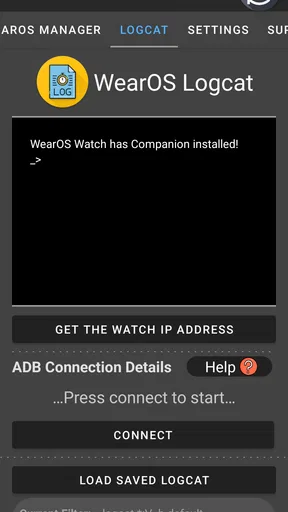
The strongest use case is troubleshooting. Imagine that a watch app keeps closing, a recent change has produced unexpected behavior, or you want more information than the watch’s normal menus provide. Opening Logcat on the phone gives you a more workable place to inspect system activity. I would not expect every log line to be immediately understandable, but having access to the output can turn a vague complaint into something more specific.
That leads to one of the app’s less obvious strengths: it can improve communication when asking for technical help. Instead of telling someone that “the watch is acting weird,” you may be able to identify the affected package or capture relevant diagnostic information. The app does not magically interpret every message for you, so the benefit is strongest for users willing to search unfamiliar terms or share useful details with a knowledgeable support community.
App management is another practical area. A watch can accumulate utilities, experiments, and software that is no longer needed, while the small screen makes cleanup tedious. Managing apps from the phone gives you a clearer inventory and a more deliberate way to decide what stays. I would use this carefully rather than treating every unfamiliar package as disposable. A technical manager makes removal easier, but it does not remove the need to understand what an app does.
Backups add a different kind of value. Before changing a device configuration or testing something experimental, having a backup workflow can provide reassurance. The useful habit is to create a backup before making a change, label it mentally by purpose, and avoid assuming that one backup automatically covers every type of watch data. A backup feature is most helpful when it becomes part of a repeatable routine rather than a button pressed only after something has gone wrong.
Shell commands are powerful, but they change the audience
Shell access is probably the feature that most clearly separates this manager from ordinary personalization tools. It can make a phone a convenient place to run commands against the watch, but that convenience comes with responsibility. A command that is harmless in one context can remove an app, alter a setting, or create confusion in another. I would never experiment with commands copied from an unknown source without first understanding what they target.
My practical advice is to use shell access in small, reversible steps. Write down the original state when possible, change one thing at a time, and keep a backup before any operation that could affect installed software or configuration. This is one of the concrete trade-offs of the app: it reduces the equipment needed for advanced work, but it does not reduce the consequences of careless advanced work.
Another useful insight is that the phone-based format encourages a different kind of maintenance. A computer tends to make ADB feel like a special project, while a mobile tool makes it realistic to perform a quick check while travelling or while the watch is on the charger. That convenience can be excellent for disciplined users, but it can also tempt people into making changes casually. I see the app as a maintenance instrument, not a toy.
Connection and setup deserve patience
Wi-Fi ADB is convenient, but it is not as invisible as ordinary Bluetooth pairing. The phone and watch need to communicate correctly, and the user must be comfortable following the connection process presented by the app and the watch. Network conditions, pairing state, and Wear OS behavior can all affect how smooth the first session feels. I would set this up at home before depending on it during an urgent troubleshooting session.
This is also where expectations matter. The app can provide access to technical functions, but it cannot make every watch expose identical behavior. Wear OS devices differ in software builds, manufacturer changes, and available system controls. A function that is useful on one watch may be less useful on another, and a command that works in a particular guide may need adjustment for a different setup.
For that reason, I would keep the official companion app installed even if I adopted this manager. They serve different purposes. The official tool remains the safer place for normal pairing and everyday settings, while this app is the specialist layer I would open when I need deeper inspection or maintenance.
Who will get the most from it?
This is a strong fit for Wear OS owners who enjoy understanding their devices rather than accepting every default. It is also useful for developers, testers, repair-minded users, and anyone who frequently installs and removes watch software. The combination of Logcat, backups, app management, and shell access gives those users a compact toolkit that can travel with the phone.
I can also see value for someone who owns an older or heavily customized watch. When storage, background behavior, or app conflicts become recurring concerns, phone-based management can make routine cleanup less tedious. The app is particularly appealing if you already know basic ADB ideas or are willing to learn them carefully.
On the other hand, I would skip it if your watch is working normally and your only interests are faces, notifications, fitness synchronization, or music controls. Installing a technical manager in that situation may add complexity without improving your day. I would also steer away from it if shell commands and diagnostic logs sound stressful. The free installation removes financial risk, but it does not remove the mental overhead of advanced device management.
Everyday scenarios where it earns its place
Consider a simple weekend example. You install a watch utility to test it, notice that the watch becomes less responsive, and want to remove it cleanly while checking whether another process is involved. Instead of repeatedly tapping through a small display, you use the phone to manage the installed app and inspect relevant logs. You then create a backup before trying another change. That sequence is much more organized than guessing from the watch face alone.
A second scenario involves preparation rather than repair. Before changing several settings or testing a new app, you make a backup and keep the changes incremental. If the result is disappointing, you have a clearer path back to the earlier state. The app’s value here is not a dramatic feature reveal; it is the way separate technical tasks can fit into a safer workflow on one device.
There is a third, less obvious scenario: helping another person with the same watch. A phone interface is easier to show, and logs or app lists are easier to discuss than tiny watch menus. That does not turn the app into remote support software, but it can make a face-to-face troubleshooting session more efficient.
Limitations I would take seriously
The biggest limitation is audience. This is not a polished “set it and forget it” personalization app. Its best functions require judgment, and some tasks may require reading documentation or understanding the difference between an installed app, a system component, and a package that should be left alone. The interface may be convenient, but the underlying work remains technical.
Wireless access can also be less predictable than a direct computer connection. If the watch is not reachable or the connection process becomes confusing, the app cannot bypass that basic communication problem. For demanding sessions involving extensive output, repeated commands, or careful file handling, a computer may still be more comfortable and dependable.
In-app purchases are another point to consider. The app costs nothing to download, but some users may need to decide whether a particular paid item delivers enough value for their own workflow. Since the purchase range is modest, trying the free portion first is the sensible approach. I would not pay simply because a feature sounds advanced; I would pay only after identifying a recurring task that it makes easier.
Finally, technical control can create false confidence. Seeing logs does not automatically explain them, and having shell access does not mean every command is safe. The app rewards a careful user much more than an impulsive one. That is not a flaw unique to this manager, but it is central to deciding whether it belongs on your phone.
My verdict on the free-versus-paid value
GeminiMan WearOS Manager has a clear purpose and a narrower audience than its broad personalization label might suggest. The free installation makes it reasonable to explore, particularly if you already need Wi-Fi ADB, app management, Logcat, backups, or shell commands. The available in-app purchases may add value for users with a specific recurring need, but I would judge them by the time and frustration they save rather than by the number of tools they expose.
Its rating is a 4.8 average from around 2.6 thousand ratings, and it has passed over 100 thousand installs. Those figures suggest that the app has found an audience, but they do not change my main conclusion: it is valuable because it solves advanced Wear OS problems, not because everyone needs it. The age rating is Everyone, yet the technical nature still makes adult supervision of one’s own actions—careful reading, backups, and restraint—more important than the label alone might imply.
My recommendation is straightforward. Install it if you want a phone-based technical toolkit for your Wear OS watch and are prepared to learn what you are changing. Keep the official companion app for normal ownership, and use this manager when you need deeper control. Skip it if you want a simple watch dashboard or have no interest in ADB-style maintenance.
The best reason to use this app is not that it adds more buttons; it is that it gives the right user a safer, more practical place to investigate and manage a small device. For that audience, the free starting point is compelling. For everyone else, the usual companion app will probably be the better and calmer choice.
Pros
- Simple way to manage Wear OS apps from a phone.
- Useful for browsing and organizing installed watch applications.
- Can make app management more convenient than using the watch alone.
- Helpful for users with multiple Wear OS devices.
- Saves time when checking watch software and available apps.
Cons
- Requires a compatible Wear OS smartwatch and Android phone.
- Some features may depend on the watch model or Wear OS version.
- The interface may feel limited for advanced users.
- Phone and watch permissions may be needed for full functionality.
- Compatibility information may not always be clear before installation.
FAQs for GeminiMan WearOS Manager
What is GeminiMan WearOS Manager used for?
GeminiMan WearOS Manager is an Android utility designed to help users manage and interact with Wear OS smartwatches from a connected phone. Depending on the watch model and Android version, it may provide tools for handling watch applications, transferring files, managing settings, or accessing functions that are not always convenient to use through the standard Wear OS interface. Its usefulness can vary between devices.
Which smartwatches and phones are compatible with GeminiMan WearOS Manager?
Compatibility depends on the version of Wear OS, the smartwatch manufacturer, the phone’s Android version, and the specific features you want to use. The app is generally intended for Wear OS watches rather than older proprietary smartwatch platforms. Before installing, check the developer’s listed requirements and confirm that your watch is properly paired with your Android phone, since iPhone support and compatibility with non-Wear OS devices may be limited or unavailable.
Does GeminiMan WearOS Manager require special permissions or advanced setup?
The application may request permissions related to nearby devices, Bluetooth, storage, notifications, or wireless debugging, depending on the tools you use. Some advanced functions can require additional setup on the watch, developer options, ADB, or a wireless connection. These steps may feel technical for beginners. It is best to read each permission request carefully, enable only what is necessary, and follow the app’s instructions before changing system settings.
Is GeminiMan WearOS Manager safe to use?
The app should be downloaded from a trustworthy source and kept updated, just like any utility that connects to a smartwatch or uses advanced Android permissions. Because some features can interact with system files, applications, or debugging settings, users should avoid removing components they do not recognize. Create a backup where possible, review requested permissions, and remember that modifying watch software may affect stability, warranty coverage, or future updates.
Is GeminiMan WearOS Manager free, and are there any limitations?
Availability, pricing, and feature limits can depend on the version you install and the source from which you obtain it. Some tools may be free while advanced functions could require a purchase, donation, or additional configuration. The app may also work differently across watch models. Before downloading, review the current store description, in-app purchase information, supported devices, and user feedback so you understand what is included.


